Working with fleet view
The fleet view mirrors what's actually happening at your dock — every physical boat, its current status, and who's on it. It's the go-to interface for linking boats to bookings, managing handouts, and spotting overdue returns.
Accessing fleet view
Go to your fleet view to see the current status of all your boats. Filter by dock or boat model using the buttons at the top.
What you see
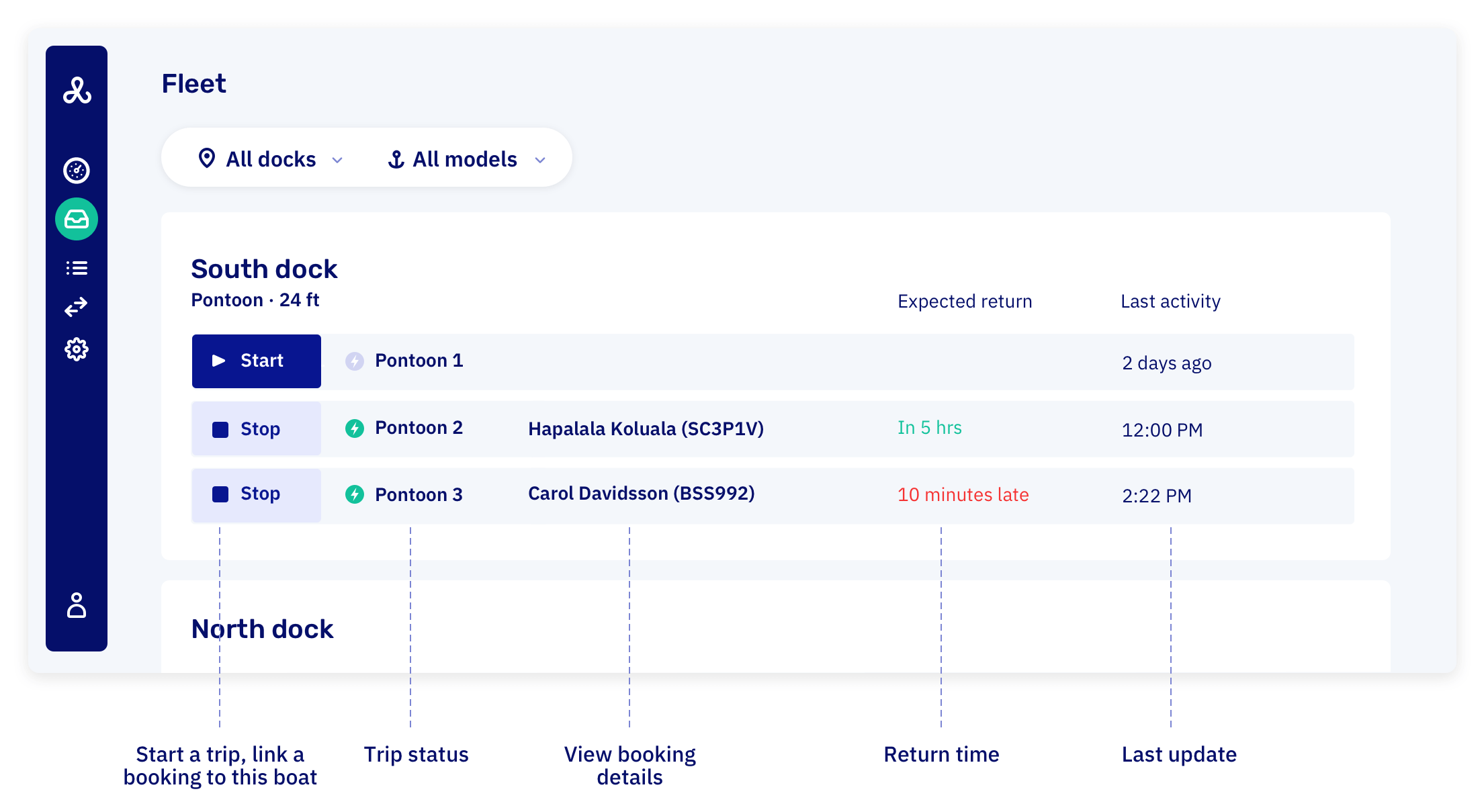
Current status of each boat:
- Green dots: Active trips in progress
- Red dots: Overdue rentals (with delay time like "+5 min.")
- Grey/No dot: Available boats ready for rental
Quick actions
Start trip - Link a trip to an existing booking, then start it directly from the fleet view
Stop trip - End an active rental and mark the boat as returned
Click boats - Click any boat to see full trip details and customer information
Connected fleet
With connected fleet, starting or stopping a trip also physically activates or deactivates the boat's engine — no separate step needed at the dock.